Zentitle2 Temporary Offline Activation
Overview
-
Temporarily locks a seat to the computer for 1 week where the application can be used offline without internet.
-
Suitable for short-term business travel where internet will not be available. Not intended for fully air-gapped system setup (in which case use the Local License Server option instead).
-
Requires prior approval from your company's License Admin(s) who must provide you with a special activation code.
Note: Your License Admin(s) may refuse to allow offline activations. The Datacor Flow Simulation Support team will not create offline activations for you.
Admin Approval
Only admins within the End User Portal (EUP) have the ability to view any Activation Codes for a given entitlement.
-
Within the EUP go to the Entitlements tab and select the desired entitlement.
-
Scroll down to the Activation Codes section. By default, all entitlements come with one Activation Code. Copy the code and give it out to your user only if you approve of a seat being locked to their computer for 1 week.
-
If you need us to revoke or create a new Activation Code please contact support.
User Steps: Activation
The following steps are divided between "In App" which refers to the application itself and "EUP" which refers to the End User Portal online in a browser.
-
In App: If you were previously signed in to the application then log out and re-launch the application.
-
In App: On the sign-in screen select the option for "Offline activation" at the bottom.
-
In App: On the Start screen select the radio button for Offline Activation and click Next.
-
In App: Enter the Activation Code provided to you by your License Admin and click Next.
-
In App: Download/copy the Activation Request Token.
-
EUP: Go to the End User Portal and click the Offline Activation menu option at the top.
-
EUP: On the Activation tab upload or paste the Activation Request Token and click Activate at the bottom.
-
EUP: Download/copy the Activation Confirmation Token.
-
In App: Upload/paste the Activation Confirmation Token into the next step of the activation wizard and click Next.
-
In App: Confirmation will be provided if the offline activation completed successfully.
This activation method will remain in effect until you manually deactivate via the procedure below. You can launch the app with or without internet access for the 1 week duration.
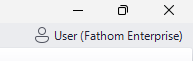
While using an offline activated seat the account bubble will display a default "User" instead of the typical email address.
User Steps: Deactivation
-
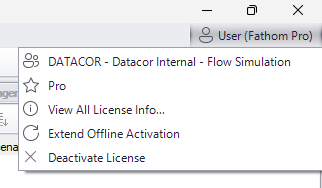
In App: Go to the account bubble in the top-right of the application and click Deactivate License. Then click Next on the Start screen.
-
In App: Acknowledge the confirmations by checking the boxes.
-
In App: Download/copy the Deactivation Request Token.
-
Recommended to not close the form or lose this token until you have confirmed that your seat has been released in the Zentitle2 EUP.
-
-
EUP: Go to the End User Portal and click the Offline Activation menu option at the top.
-
EUP: On the Deactivation tab upload or paste the Deactivation Request Token and click Deactivate.
-
EUP: Confirmation will be provided upon successful deactivation.
-
In App: Click Finish which will exit the program. Re-launching will allow you to sign-in again with the normal online activation method if desired.
Extending / Refreshing an Offline Activation
Only your License Admin(s) have the ability to extend an offline activation and download a new token. This will reset the 1 week interval.
-
EUP (Admin): Go to the Entitlements menu option and select the desired entitlement.
-
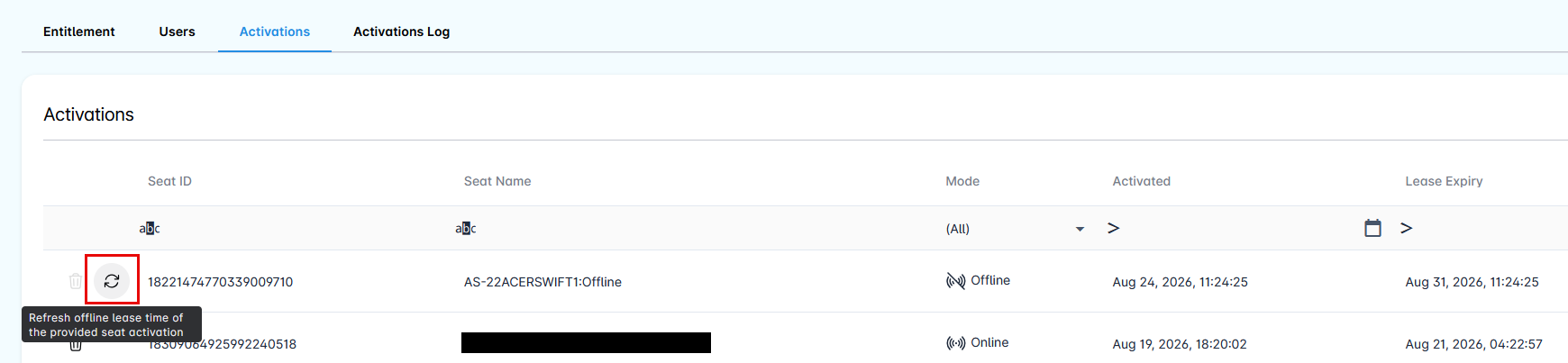
EUP (Admin): Go to the Activations tab and find the desired offline activation by looking for the associated user in the Seat Name column.
-
EUP (Admin): Click the refresh button.
-
EUP (Admin): Download the refreshed activation token and send to your user.
-
In App: Go to the account bubble in the top-right of the application and click Extend Offline Activation.
-
In App: Click Next and upload the refreshed activation token then click Next.
-
In App: Confirmation will be provided and the new expiration date will be shown.