Legacy Licensing
Warning: The details on this page refer to unsupported legacy licensing options which have been sunset. The following documentation is provided as a courtesy and reference for legacy license users.
Applies to: Fathom 14, Arrow 11, Impulse 11, xStream 4, and prior.
See information on migrating legacy licenses to our current platform here.
Types of Legacy Licenses
Network eLicenses: Cloud-based floating seat licensing model that we refer to as a “Network eLicense”. With this licensing model, the number of seats that you purchase go into a common pool of floating seats available on the license. The floating seats are checked out/in when a client opens/closes the software. The software can be installed on an infinite number of client machines; however, the number of seats which have been purchased determines how many concurrent users can have the software open at one time. See the eLicense Guide page for more information.
Standalone eLicenses: Node-locked licensing model where the license can only be activated on a single Windows user account on a single client machine. They also offer the capability to be activated on an air-gapped or offline machines with no internet access (see the Remote Activation steps). For customers who do not require an air-gapped solution, the Network eLicense is superior. We have been migrating all customers to Network eLicenses at the time of their software renewal.
USB Hardware Keys: Hardware dongles that have their own respective Network and Standalone variants, both of which do not require internet access. Requires drivers to be installed. Standalone variants have a green plastic shell and must be plugged directly into the machine. Network variants have a red plastic shell and must be plugged into a hosting machine/server which other client machines can connect to using a nethasp.ini file set up with the appropriate IP address. See the USB Key Guide page for more information.
What kind of license do I have?
If you are running the software, check the Tools menu. If an eLicense was used to run the software then an "eLicense Information" menu option will be available. Selecting eLicense information will open a limited version of the eLicense Manager utility and will show additional information on the eLicense profile, and license seats available.
If "eLicense Information" is not available in the Tools menu, then a USB Key was used to access the software. Standalone USB Keys must be plugged directly into the local machine to access a license. Network USB Keys may be located on a server, or on another machine on the local network to access a license.
Alternatively if you cannot open the software, the license error message will typically show the license type last used to open the software.
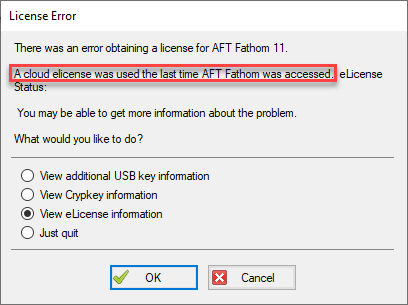
How do I view troubleshooting information for my license?
If you get a license error when launching the software, first determine what type of license you have as explained above. Next, select your licensing type from the list in the License Error window, and click OK. A diagnostic window should now appear with detailed information on the error. This information may be used to determine troubleshooting steps as described in the eLicense Guide or USB Key Guide.