Software Installation for Current Versions
Overview
-
Current Versions: Fathom 15, Arrow 12, Impulse 12, and xStream 5. For older versions see our Previous Version Installation page.
-
Downloads: Installers are downloaded from our Customer Portal. For instructions on registering see our Customer Portal FAQs.
-
Apps are packaged as a suite: The single, unified installer is a package where you configure which apps you want to be installed (see: why we made this change).
-
Use the appropriate set of instructions for your use case:
-
Standard Install - For individual engineers with appropriate permissions to install on your work computer.
-
Silent Install - For IT Admins doing mass-deployment for enterprises using software centers, Microsoft Intune, SCCM, RMM tools, etc.
-
Passive Install - For IT Admins doing mass-deployment but want minimal UI to confirm installation (no user input).
-
Modifying an Install - For adding or removing apps from the packaged suite of the same release date.
-
Updating to a New Release - For upgrading your selected set of installed apps to a newer release date.
-
-
License Activation: Once installation is complete, engineers will need to be set up with a login and granted access to the appropriate license entitlements. See our page on License User Setup.
Note: Fathom, Arrow, Impulse, and xStream can be installed on an unlimited number of user machines, but the number of concurrent users is dictated by the number of seats which were purchased on the license.
Requirements
-
Administrator Privileges - The application installation will require admin rights on the PC. Silent install scripts must be executed as admin or by the SYSTEM account.
-
System Requirements - See our recommended hardware/OS specifications.
Standard Install
-
Download the installer from the Customer Portal.
-
Right-click on the installer and select Run as administrator.
-
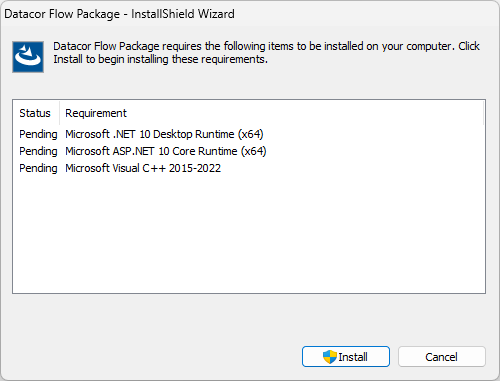
You may be prompted to install additional dependencies if they are not present on your computer already. If so, install each one, otherwise this step will be skipped. The dependencies are bundled with the installer package and will automatically launch their respective installers if needed. Some of these dependencies will open additional pop-ups. Accept their respective license terms if prompted.
-
Click Next to begin the installation. Read and accept the License Agreement.
-
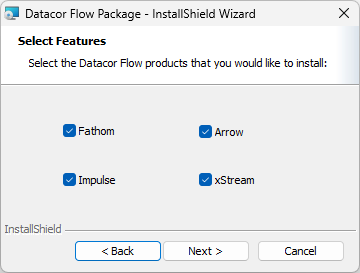
Select which products you want to install. If you need to change these selections later then see our instructions on Modifying an Install.
-
Click Install which will prompt you for confirmation via a Windows User Account Control (UAC) pop-up to acknowledge the changes to the PC.
-
Click Finish to exit the installer when done.
-
Launch the desired app and login with your licensing credentials (or see our License User Setup instructions).
Silent Install
Silent installation refers to the capability of System Admins to push installations and updates to end-user machines without any user input. Silent installation happens in the background on the PC without any GUI or interface pop-ups. It is useful for mass-deployment of software versions in enterprise environments with hundreds or thousands of engineers who need the software installed. Silent installation commands can be useful for tools such as company software centers, Microsoft Intune, SCCM, RMM tools, Windows Command Prompt, batch files (*.bat), PowerShell scripts, etc. Silent installation involves passing parameters into an *.msi Windows installer file that is embedded within our *.exe installer.
There are additional requirements that must be met before a silent install command can be run successfully. All dependencies must be pre-installed on the user's PC. Normally, these dependencies are packaged within the installer and can be run if they are flagged as missing, but some of them require GUI input for selecting check boxes like agreeing to Microsoft license terms. Ensure that the following dependencies are installed prior to trying to execute the silent install commands below.
The Visual C++ Redist in particular has a license agreement pop-up that will still show up even if triggered from a fully silent install command. Checking the box to agree to the license and clicking Install will allow it to proceed, but the rest of our installer will be paused until that step is completed. If the dependencies listed above are already installed on the PC then the installer will check and make sure they are at least the required version or higher and will proceed with silent installation.
Template Commands: (your deployment method must be Run as administrator or SYSTEM)
-
Silent Install:
Datacor-Flow-Simulation-Package-2026.09.01.exe /S /v/qn /v"ADDLOCAL=Fathom,Arrow,Impulse,xStream"
-
Silent Partial Uninstall: (modifies the installed package by removing only the specified apps, in this example Fathom)
Datacor-Flow-Simulation-Package-2026.09.01.exe /S /v/qn /v"REMOVE=Fathom"
-
Silent Full Uninstall: (removes all apps)
Datacor-Flow-Simulation-Package-2026.09.01.exe /S /x /v/qn
The above commands are a basic template where the parts in red may need to be modified. For your reference the important portions are detailed below:
-
Datacor-Flow-Simulation-Package-2026.09.01.exe - This is the file name of the installer executable. If you renamed the installer then be sure to use the appropriate file name.
-
/S - Tells the wrapper setup exe to run silently without UI pop-ups.
-
/x - Tells the package to uninstall (removes the package as a whole including any configured apps).
-
/v/qn - Tells the embedded msi to also run silently.
-
/v"property" - Passes the configuration property in quotes into the embedded msi.
-
/v"ADDLOCAL=Fathom,Arrow,Impulse,xStream" - Specifies which apps to install from the packaged suite. IMPORTANT: The app names are case-sensitive and must be spelled correctly. This is equivalent to the UI step where you select the checkboxes. Multiple apps can be specified when comma separated without spaces. You can remove the names of whichever apps you don't want to install (ex. /v"ADDLOCAL=Fathom,Impulse").
-
/v"REMOVE=Fathom,Arrow,Impulse,xStream" - Specifies which apps to remove from the packaged suite. IMPORTANT: The app names are case-sensitive and must be spelled correctly. This is equivalent to the Custom Setup UI when Modifying an Install. Multiple apps can be specified when comma separated without spaces.
Further advice for packaging into company software centers:
Something fundamental to understand about the installer is that it's a single package/suite. This means any of the products show up as only one entry in the Windows Control Panel ("Datacor Flow Package"). The individual products (Fathom, Arrow, etc) can be considered sub-components or features that are included or excluded from the installer configuration. You can choose to either deploy the package as a whole where it installs all apps (/v"ADDLOCAL=Fathom,Arrow,Impulse,xStream"), or you can try to further customize the behavior to deploy individual products by name (which would really modify the package install to include or exclude the components). Note that uninstalling one app with the /x switch will uninstall all products because the /x applies to the package as a whole. However, you can use the /v"REMOVE=" option in it's place. It is up to you to choose the best way to deploy the apps to your users and our support will not assist with scripted deployments, but we can show an example approach written from the context of Microsoft Intune (which you may need to modify accordingly).
-
Name: Fathom 15
-
Description: Incompressible pipe network analyzer
-
Publisher: Datacor Flow Simulation
-
App Version: 15.0.1377
-
Install command: Datacor-Flow-Package-1.0.1377-2026.09.01.exe /S /v/qn /v"ADDLOCAL=Fathom"
-
Uninstall command: Datacor-Flow-Package-1.0.1377-2026.09.01.exe /S /v/qn /v"REMOVE=Fathom"
This essentially modifies the package install by removing only Fathom and leaves other components installed if present. If it's the only one of the four apps /v"REMOVE=" will have the same behavior as fully uninstalling (the Datacor Flow Package won't be visible in Control Panel anymore).
-
Install behavior: Run as SYSTEM account
Passive Install
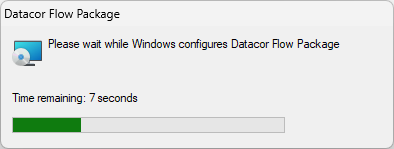
Passive installation is similar to silent install but it produces a minimal UI window with a progress bar so you can keep track of if the script is working and when it's finished. The progress bar pop-up cannot be canceled by the user so it is for information only. The passive command can be used with both installing or uninstalling. Replace the /v/qn command with /v/passive.
Your deployment method must be Run as administrator or SYSTEM.
-
Passive Install:
Datacor-Flow-Simulation-Package-2026.09.01.exe /S /v/passive /v"ADDLOCAL=Fathom,Arrow,Impulse,xStream"
-
Passive Partial Uninstall: (modifies the installed package by removing only the specified apps, in this example Fathom)
Datacor-Flow-Simulation-Package-2026.09.01.exe /S /v/passive /v"REMOVE=Fathom"
-
Passive Full Uninstall: (removes all apps)
Datacor-Flow-Simulation-Package-2026.09.01.exe /S /x /v/passive
Modifying an Install and Adding Additional Apps Later
The unified installer package will save a configuration of which of the four applications you selected to be installed. It will show up as a single program in the Control Panel ("Datacor Flow Package"). If you originally installed one of the applications but later need to add another app (or remove one), then you can follow these steps. All apps within the package share the same build number and release date.
-
Re-run the exact same installer version.
-
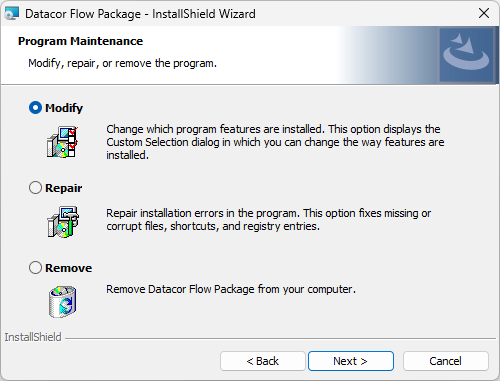
Select Modify from the Program Maintenance screen.
-
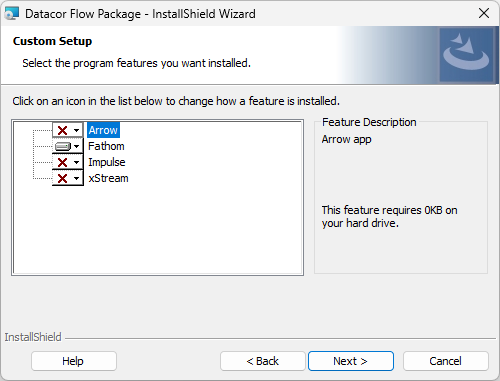
Select the drop-down next to whichever app you want to install in addition to the original selection.
-
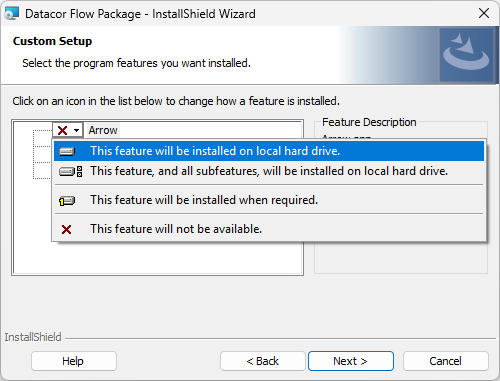
Select the option for "This feature will be installed on the local hard drive".
-
Click Next and then click Install.
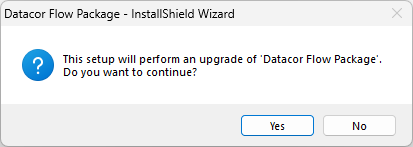
Updating to a New Release
The unified installer package will save a configuration of which of the four applications you selected to be installed. It will show up as a single program in the Control Panel ("Datacor Flow Package"). When you run a newer installer it will upgrade whichever applications were saved in the configuration. This means that if you have Fathom + Arrow installed, and you run a new installer to update Arrow, then Fathom is also updated at the same time since the whole package shares the same build number and release date. You will be prompted with a pop-up saying it will proceed with the upgrade. If you need to change the configuration of which individual apps are installed as part of the package then see the instruction for Modifying an Install. It is not possible to update only one of the apps and not any others which are also installed as part of the package (all-or-nothing).